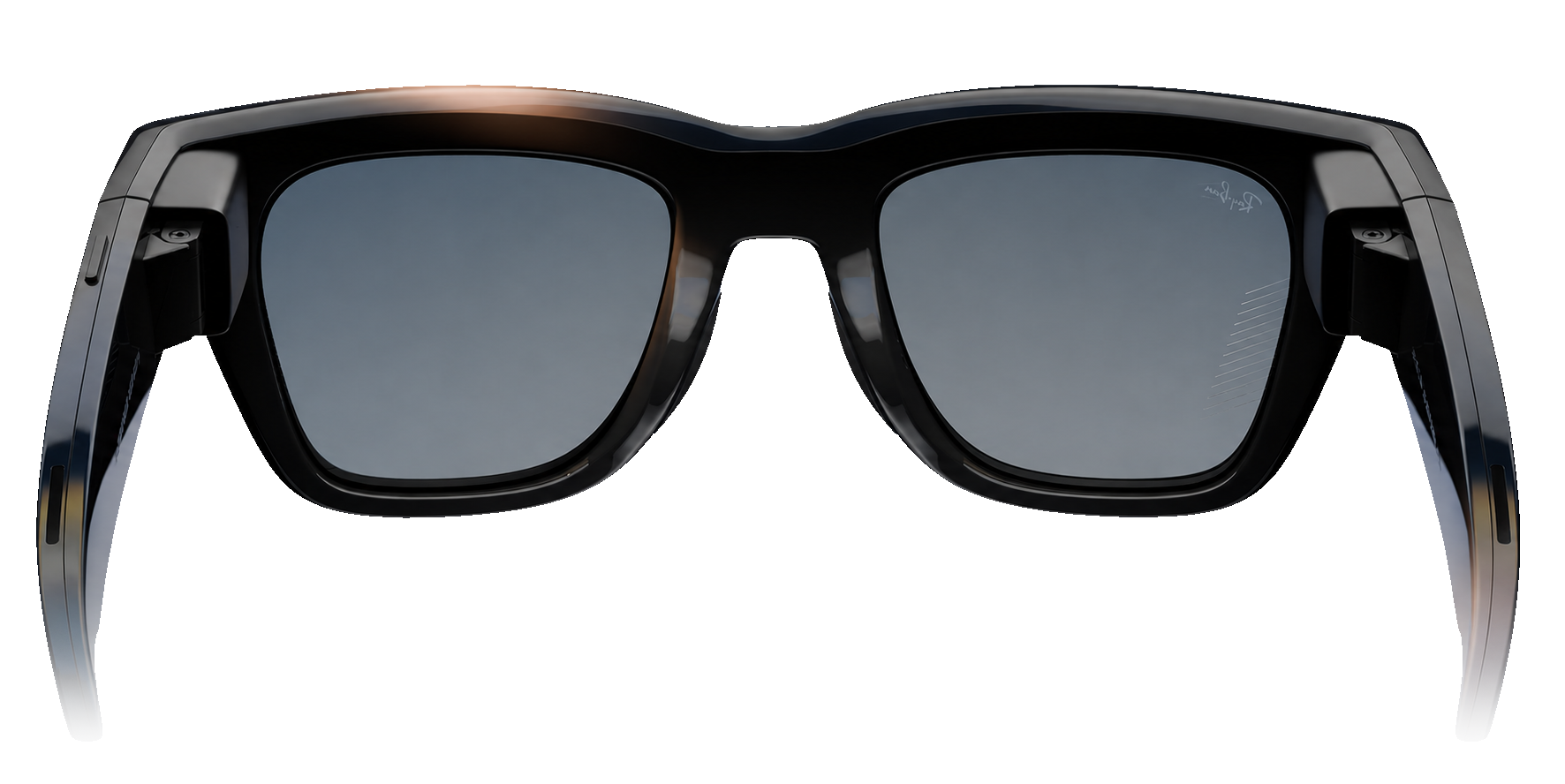
Heron streams your books, PDFs, and articles one word at a time onto the
display in your Meta Ray-Ban Display glasses — so you read faster without moving your eyes,
your hands, or a single page.
One word at a time. Right where you're already looking.
RSVP — Rapid Serial Visual Presentation — replaces the work of scanning lines with a single fixed point. Heron brings it to the Meta Ray-Ban Display glasses you already wear.
01
Send it from any device
Open the send page on any phone, tablet, or computer with a browser, pick an ebook, PDF, text file, or web article, and send it across to your glasses with a six-digit code.
epubpdftxtweb pages
02
The words come to you
Each word flashes on the lens with its focal letter held on the coral guide — your eye locks once and never has to track across a line.
03
Drive it hands-free
Pinch to play and pause, swipe the temple to scrub, glance the D-pad to change speed. No screen to hold, nothing to tap.
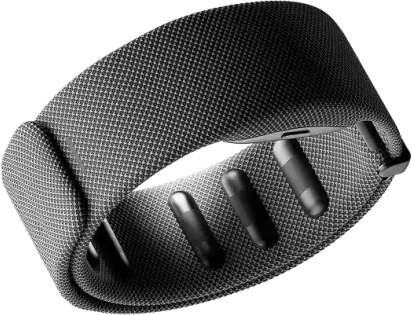
Neural Band
Control it with a flick of your wrist
The paired Neural Band reads the faint muscle signals in your wrist, so you steer the reader with tiny gestures no one else can see. Nothing to hold, nothing to tap.
Comfortable pace, or full throttle.
A typical reader does around 200 wpm on a page. Heron starts at a comfortable 300 and lets you push to 700 — one dial, no re-reading.
300wpm
Easy default
700wpm
Top cruising speed
3.5×
Faster than normal reading
Get Heron
Add it to your glasses in under a minute.
Heron is a web app for Ray-Ban Display. Scan the code, or add the link by hand in the Meta AI app — no install, no app store.
01Open the Meta AI appon the phone paired with your glasses.
02Go to Devices → Display glasses → Web apps.
03Tap Add a web appand paste the Heron link.
04Put them on. Heron is in your app launcher, ready to read.
https://…
First time adding custom web apps on your Ray-Ban Display? You'll need to on the Meta AI app first.
Scan to add Heron
Phone camera · opens Meta AI
Good to know
Questions, answered.
What can I read on Heron?
PDFs, ePub books, plain-text files, and web articles. You add them on your phone at read.rayve.app/send — upload a file or paste a link, and Heron extracts a clean, readable version for your glasses.
How do I add a book to my glasses?
From your phone, open read.rayve.app/send and upload a file or paste a link. You'll get a 6-digit code — enter it in Heron on your glasses and the book lands on your shelf. Each code stays valid for 7 days.
How fast can I actually read?
Heron opens at a comfortable 300 words per minute and goes up to 700 — about 3.5× normal reading. Because it shows one word at a time in a fixed spot, your eyes never jump around, so higher speeds feel natural faster than you'd expect. Start slow and raise it as the rhythm clicks.
Do I need an internet connection?
Only to add a book. Once it's on your glasses it's saved on the device, so you can read anywhere — on a flight, underground, completely offline.
Where are my books stored?
Heron keeps your books on your glasses, not in an online account. That's what lets you open them instantly and read offline, with nothing to sync or sign into.
Your glasses have limited storage — enough for a handful of books, and larger books take up more of it. If it fills up, Heron makes room by clearing the text of your oldest books. The book stays on your shelf with a Re-add label so you always know what happened — your other books and reading positions aren't touched.
To bring one back, just send it again from read.rayve.app/send. The 6-digit code works for 7 days, so within that window the same code re-adds it; after that, re-upload the file.
There's also a per-book limit of about 3 million characters. If a document is larger, the send page tells you right away and won't create a code — so nothing half-loads onto your glasses.
Legal
Privacy Policy
Last updated: June 2026
Heron ("we", "us") makes a reading app for Ray-Ban Display glasses. This policy explains what we handle when you use Heron and the documents you choose to read with it.
Information we handle
Documents you add. The ebooks, PDFs, text files, and articles you send to Heron so they can be displayed one word at a time.
Reading state. Your position in a document, reading speed, and display preferences, so you can pick up where you left off.
Basic device & usage data. Limited technical information needed to run the app reliably on your glasses.
How your documents are processed
Heron parses your files into words for the rapid serial display. Your documents and reading position are stored locally on your device wherever possible. We do not sell your documents, and we do not use their contents for advertising.
How we use information
To display your documents and remember your place and preferences.
To operate, maintain, and improve the app's reliability and performance.
To respond to support requests you send us.
Sharing
We don't sell your personal information. We may share limited data with service providers who help us run the app, or where required by law. Use of Heron on Meta hardware is also subject to Meta's own terms and privacy practices.
Retention & your choices
You can remove a document and its saved reading position at any time from within the app, and reset all progress from Settings. Removing the app removes its locally stored data.
Security
We take reasonable measures to protect your information. No method of storage or transmission is ever completely secure, and we can't guarantee absolute security.
Children
Heron is not directed to children under 13 (or the minimum age in your region), and we don't knowingly collect their personal information.
Changes & contact
We may update this policy from time to time; material changes will be noted here with a new date. Questions? Reach us on X at @myaioverlords.
Last updated: June 2026
These terms govern your use of Heron. By adding Heron to your glasses or using the app, you agree to them. If you don't agree, please don't use Heron.
The service
Heron is a web app for Ray-Ban Display glasses that presents documents you provide as a rapid one-word-at-a-time reading stream. We may add, change, or remove features over time.
Your content
You keep all rights to the documents you add. You're responsible for ensuring you have the right to use any file you read with Heron, and that doing so doesn't break any law or third-party agreement.
Acceptable use
Don't use Heron for unlawful purposes or to infringe others' rights.
Don't attempt to disrupt, reverse-engineer, or misuse the service.
Don't upload content you don't have permission to use.
Intellectual property
Heron, its name, logo, and software are owned by us and protected by applicable laws. These terms don't grant you any rights to our branding except to use the app as intended.
Disclaimers
Heron is provided "as is" and "as available," without warranties of any kind. Reading speed and comprehension vary by person; we make no guarantees about results. The app depends on your glasses and paired device functioning correctly.
Limitation of liability
To the fullest extent permitted by law, we are not liable for indirect, incidental, or consequential damages arising from your use of Heron.
Changes & governing law
We may update these terms; continued use after changes means you accept them. These terms are governed by the laws of your applicable jurisdiction. Questions? Reach us on X at @myaioverlords.
Heron runs as a web app on Ray-Ban Display, which today requires developer mode in the Meta AI app. It's a one-time, two-minute setup.
Before you start
Meta AI app v254 or newer.
Glasses software v20+ (Ray-Ban Meta) or v21+ (Meta Ray-Ban Display).
Your glasses connected to the Meta AI app.
Check your glasses software version
In the Meta AI app, open the Devices tab (the glasses icon at the bottom) and select your device.
Tap the gear icon to open Device settings.
Tap General → About → Version.
Confirm you're on the minimum version or above — if not, update your glasses software.
Enable developer mode
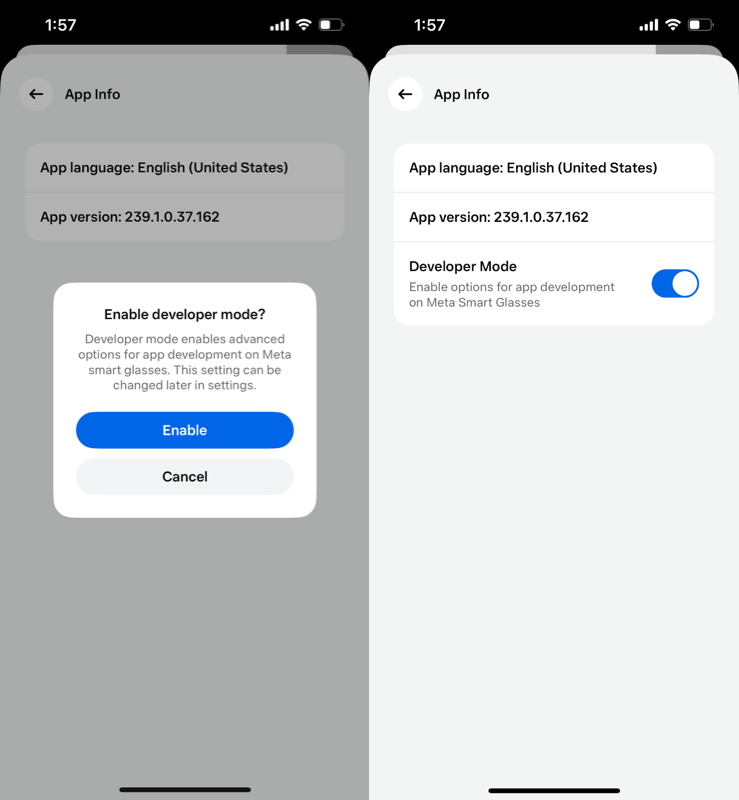
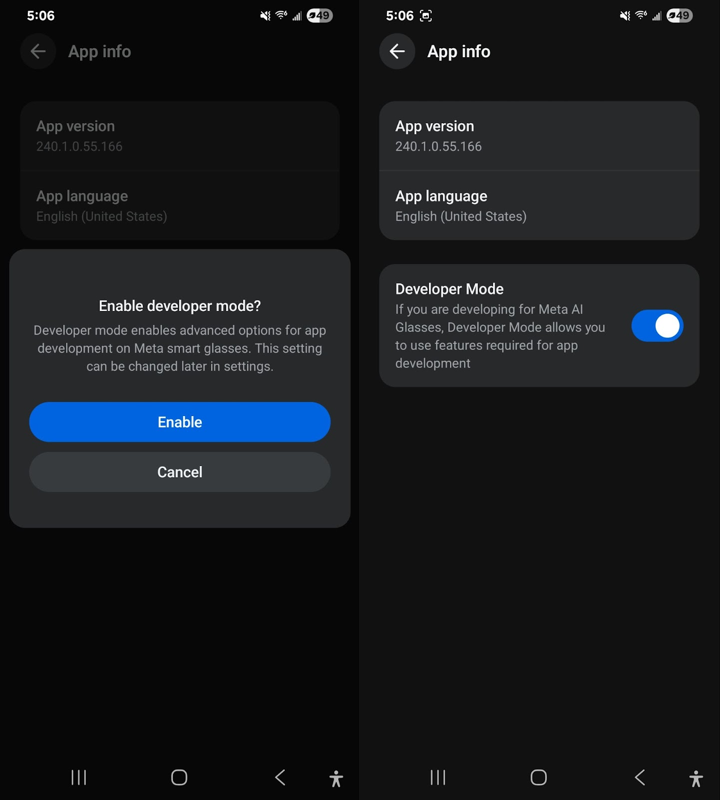
In the Meta AI app, go to Settings → App info, then tap the app version number five times to reveal the Developer Mode toggle.
Switch the toggle on.
Tap Enable to confirm.
Once developer mode is on, a Web apps option appears under Devices → your glasses — then add Heron with the link or QR above.
 Heron
Heron